Scaling Reported Revenue with the Revenue Multiplier
The revenue a conversion reports isn't always the number you want to optimize against. Maybe you keep only your share of a rev-share deal, your network pays in a different currency than the one you report in, or you'd rather optimize toward projected lifetime value than the front-end sale. The Revenue multiplier scales the revenue a target reports — up or down — before ClickerVolt records it, so your reports reflect the number that actually matters to you.
It applies to every conversion source (postbacks, IPNs, JavaScript pixels, email postbacks, manual attribution, and TrafficZest vendor revenue) and to refunds as well, so your Net Revenue stays consistent. It's a per-target setting, and the default is 1 — leave it there and nothing changes.
How It Works
You set a single number — the multiplier — on a target. Every revenue figure that target reports is multiplied by it before it's recorded:
- A multiplier of 0.7 records 70% of the reported amount (a $100 sale becomes $70).
- A multiplier of 1 (the default) records revenue exactly as reported.
- A multiplier above 1 scales revenue up (for example 1.08 to convert EUR to USD).
The scaled figure is what appears everywhere in ClickerVolt — the Revenue column in your reports, Profit and ROI, Cohort LTV, webhooks, and the conversions sent to your ad platforms. The original reported number isn't stored separately, so choose the multiplier that represents the revenue you want to see.
When To Use It
- Rev-share / true payout — keep only your split of a co-buy or sub-affiliate deal (for example ×0.7).
- Currency conversion — convert a network's payout into the currency you report in. Any pair works, from small adjustments (×1.08 for EUR→USD) to very different currencies (×0.0067 for JPY→USD, or ×15800 for USD→IDR).
- Sampling — gross a partial signal back up to the true total.
- LTV projection — optimize toward projected lifetime value instead of the front-end sale.
The multiplier is a fixed number you set. It's ideal for a stable rev-share split or a steady exchange rate, but it does not track live currency rates — if your rate moves significantly, update the multiplier.
Before You Start
- You need a link with at least one target that has conversion tracking set up. If you haven't done that yet, see Setting Up Conversion Tracking.
- Decide on your factor — the number your reported revenue should be multiplied by.
How To Set a Revenue Multiplier
- Open the link and edit (or add) the target whose revenue you want to scale.
- Go to the target's Tracking Setup → Conversions tab.
- Choose your conversion source if you haven't already. Once a source is selected, the Revenue multiplier field appears (marked with a × symbol).
- Enter your factor — for example
0.7. Leave it at1, or clear the field, to record revenue exactly as reported. - Save the target.
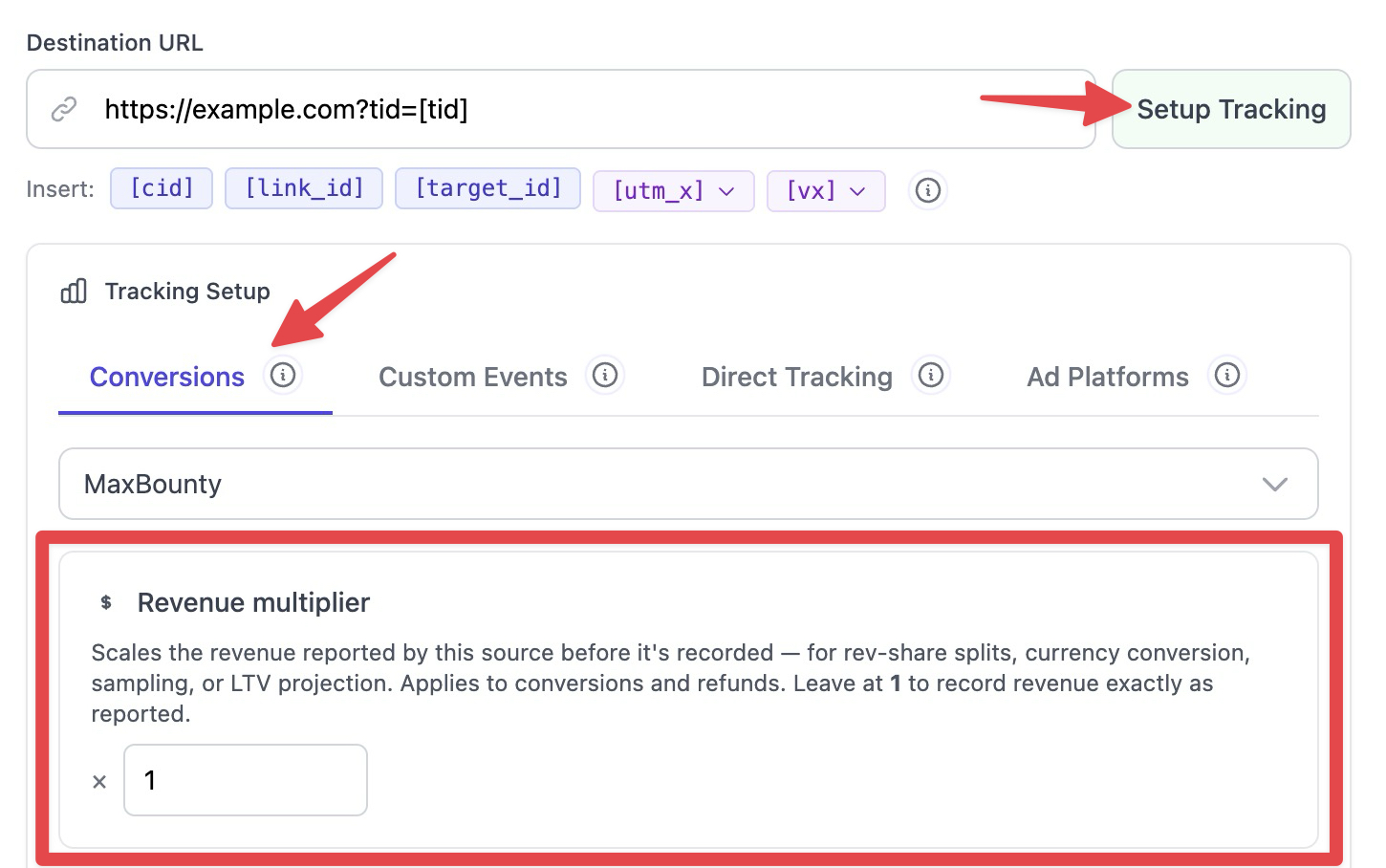
Accepted values run from 0.000001 to 1000000. Zero isn't allowed: a 0× multiplier would wipe out all revenue, which is what turning conversion tracking off is for. If you enter a value outside the range, the field shows an error and Save stays disabled until you fix it.
Verify It's Working
After you save, the next conversion on that target is recorded at the scaled amount. Send or wait for a test conversion, then check the Revenue column for that target in your reports — it should show the multiplied figure rather than the raw reported amount. Refunds on the same target are scaled by the same factor, so your Net Revenue stays consistent.
What's Next
- Refunds are scaled too — see Refund Tracking & Net Revenue.
- Selling traffic on TrafficZest? The multiplier also applies to your vendor revenue — see Tracking Your Revenue as a TrafficZest Vendor.