Custom Event Tracking
ClickerVolt provides 10 custom event tracking slots (Events 1-10) that allow you to track multiple conversion points beyond the main conversion. Use these to measure micro-conversions, funnel steps, or different types of actions within your marketing funnel. Two tracking methods are available: JavaScript (for browser-side events) and S2S Postback (for server-side events).
What Are Custom Events?
Custom events are additional tracking points you can configure on your tracking links. While the main conversion tracks your primary goal (like a sale or opt-in), custom events let you track secondary actions like:
- Free trial signups (Event 1) and paid upgrades (Event 2)
- Engagement metrics like video views, downloads, or demo requests
- Multi-step funnel progression (lead → call booked → sale)
- Different product purchases on the same campaign
- Upsells and cross-sells in your funnel
How to Track Custom Events
Event tracking is configured at the target level. Two methods are available depending on where the events occur:
Method 1: JavaScript Event Tracking
Use JavaScript tracking when events occur in the browser (button clicks, scroll depth, video views, form submissions, etc.).
Setup Steps:
- Open your link in the editor
- Add or edit a target
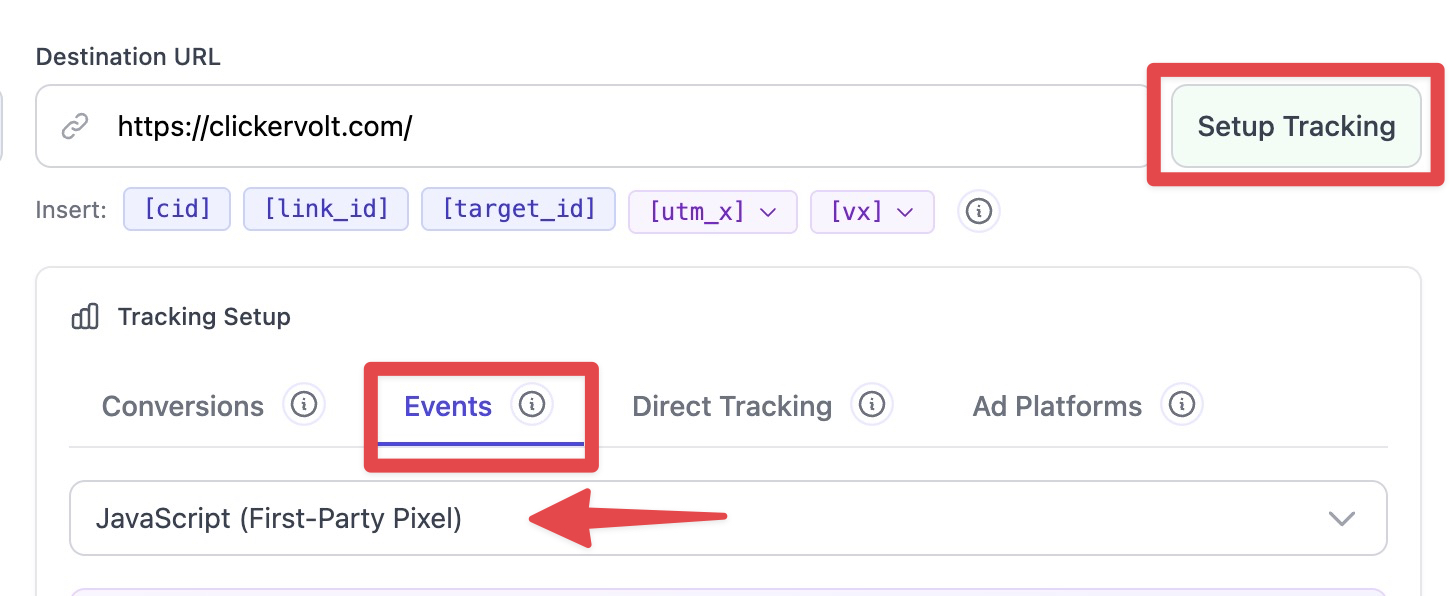
- Click the "Setup Tracking" button next to the target URL
- Select the "Events" tab
- Choose "JavaScript (First-Party Pixel)" as the tracking method
- Copy the Universal Tracking Script and add it to ALL pages of your funnel
- Copy the Event Tracking Function and add it to the SAME pages (after the Universal Script)
- Use cvEvent(targetId, N) in your JavaScript code to fire events manually, or use the code generator for automatic triggers
Manual Event Triggering:
Call the cvEvent() function in your JavaScript code to track events:
- cvEvent('YOUR_TARGET_ID', 1) - Tracks Event 1
- cvEvent('YOUR_TARGET_ID', 2) - Tracks Event 2
- ... up to cvEvent('YOUR_TARGET_ID', 10) - Tracks Event 10
Important: The targetId is a unique identifier for your target. You can find it in your target settings. This parameter is required because it allows ClickerVolt to support multiple targets on the same page.
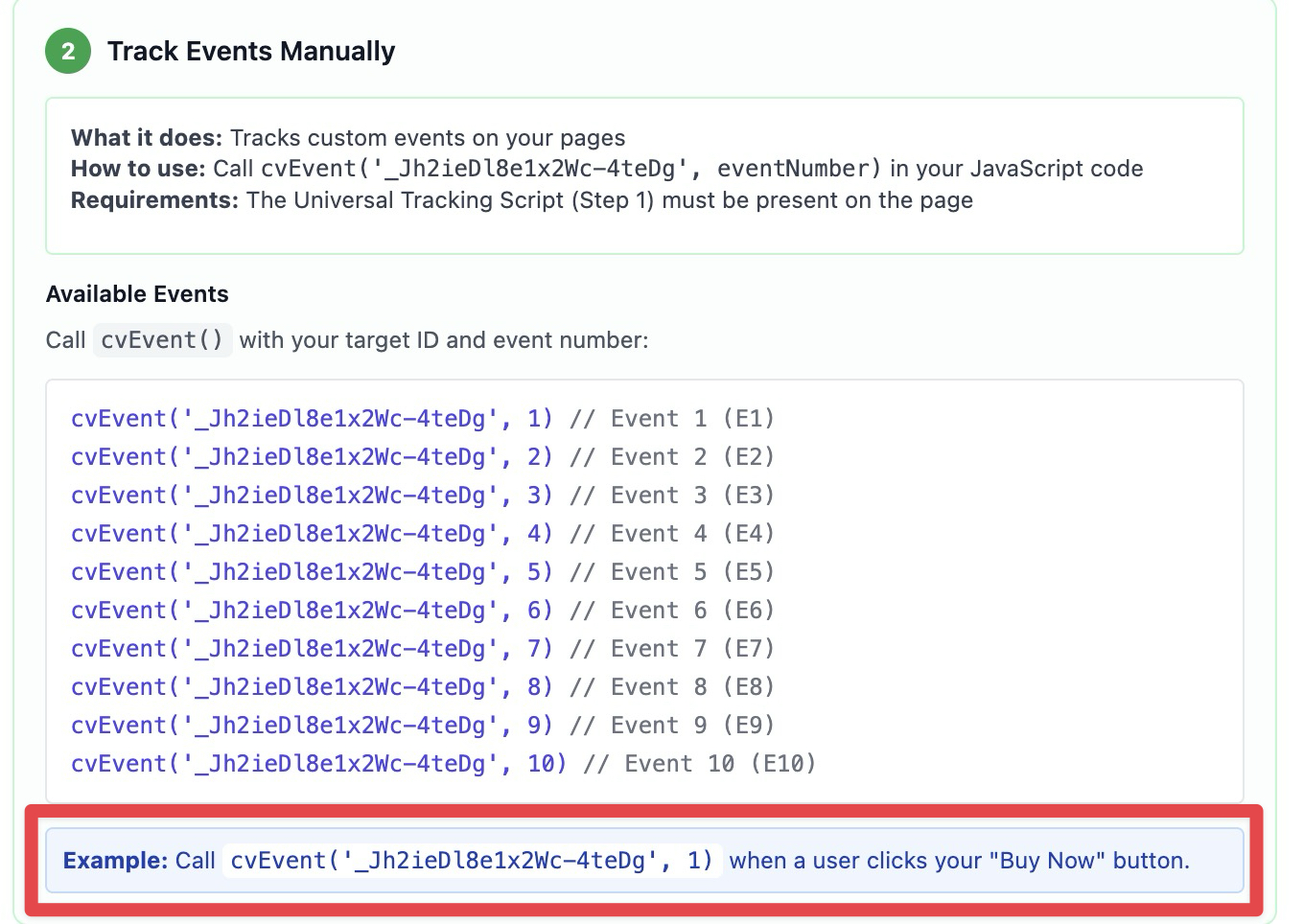
Tip: Store your targetId in a variable for cleaner code:
var targetId = 'YOUR_TARGET_ID'; cvEvent(targetId, 1); cvEvent(targetId, 2);
Examples:
- Track button click: onclick="cvEvent('YOUR_TARGET_ID', 1)"
- Track form submission: document.getElementById(''myForm'').addEventListener(''submit'', () => cvEvent('YOUR_TARGET_ID', 2))
- Track video completion: video.addEventListener(''ended'', () => cvEvent('YOUR_TARGET_ID', 3))
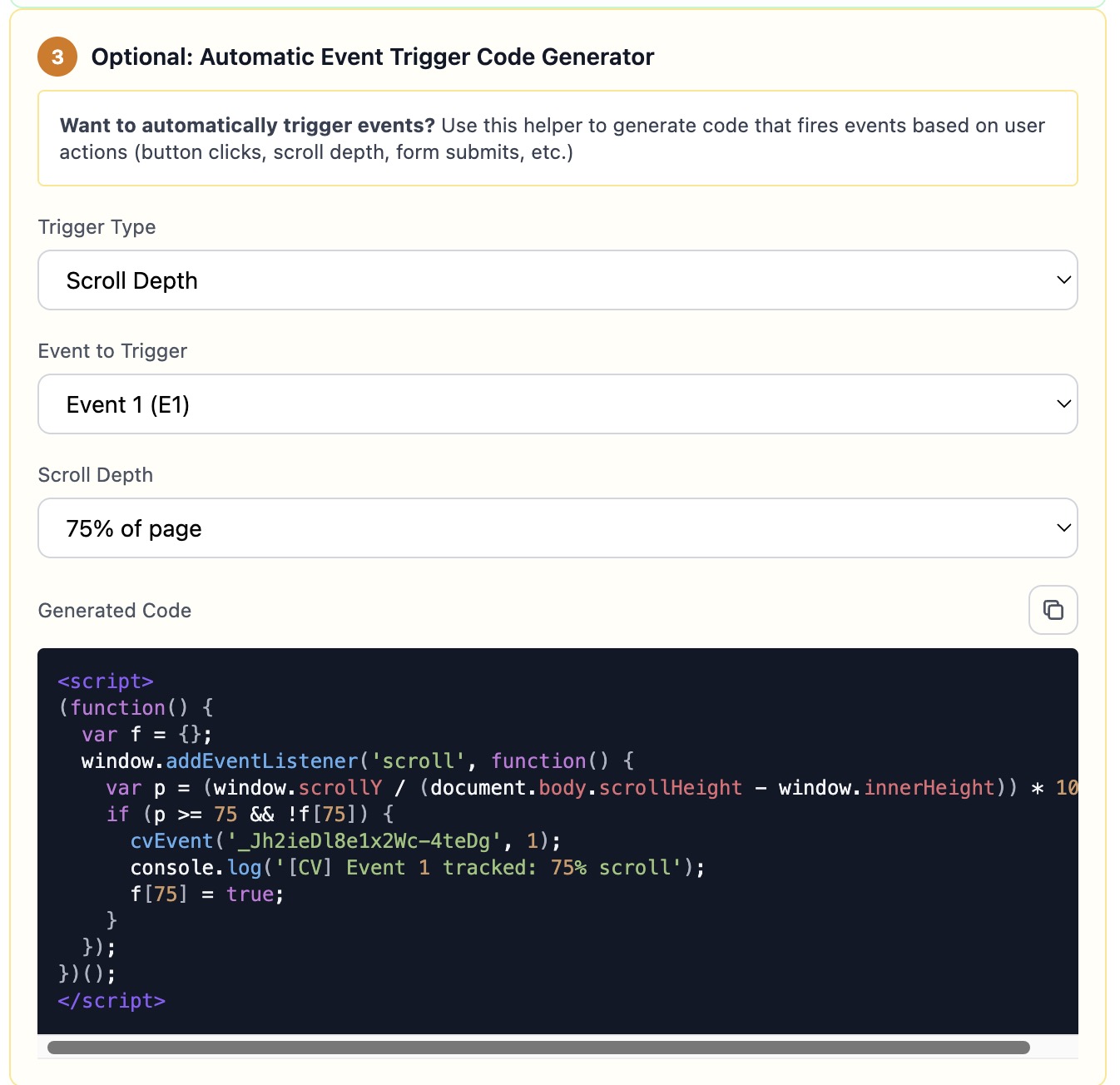
Automatic Event Triggering:
Use the optional code generator to automatically track events based on triggers:
- Page View - Fire event when page loads
- Button/Link Click - Fire event when specific element is clicked
- Form Submit - Fire event when form is submitted
- Time Delay - Fire event after X seconds
- Scroll Depth - Fire event when user scrolls X%
- Element Visibility - Fire event when element appears in viewport
- Exit Intent - Fire event when user moves cursor to leave page
- Input Focus - Fire event when form field is focused
The code generator creates ready-to-use code snippets for each trigger type.
Method 2: S2S Postback Event Tracking
Use S2S postback when events occur on your server or external platform (payment processing, webhook triggers, email opens, subscription events, etc.).
Setup Steps:
- Open your link in the editor
- Add or edit a target
- Click the "Setup Tracking" button next to the target URL
- Select the "Events" tab
- Choose "Server-to-Server (S2S Postback)" as the tracking method
- Copy the Event Postback URL
- Call this URL from your server with cid (click ID) and event (event number) parameters
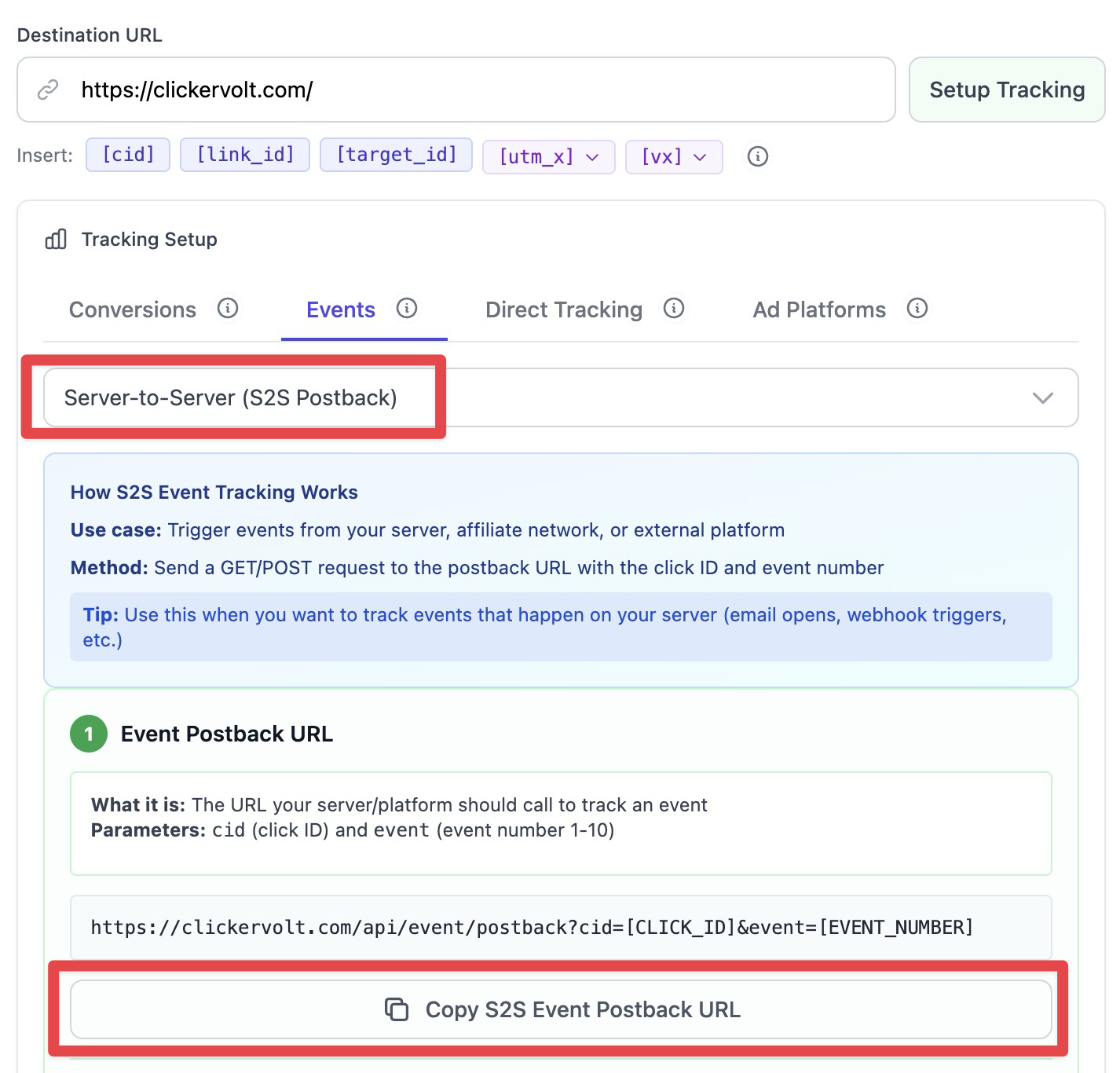
Postback URL Format:
https://clickervolt.com/api/event/postback?cid=CLICK_ID&event=N
Parameters:
- cid - The click ID from the visitor (passed in your tracking link URL as ?cid=[cid]...)
- event - Event number from 1 to 10
Example:
- Track Event 1: GET https://clickervolt.com/api/event/postback?cid=abc123&event=1
- Track Event 2: GET https://clickervolt.com/api/event/postback?cid=abc123&event=2
- From cURL: curl "https://clickervolt.com/api/event/postback?cid=abc123&event=1"
Common Use Cases
Lead Funnel Tracking
- Main conversion: Email opt-in
- Event 1: Booked call or demo
- Event 2: Became customer
E-commerce with Upsells
- Main conversion: Frontend product purchase
- Event 1: Upsell 1 accepted
- Event 2: Upsell 2 accepted
- Event 3: Order bump added
SaaS Trial to Paid
- Main conversion: Free trial signup
- Event 1: Completed onboarding
- Event 2: Upgraded to paid plan
- Event 3: Annual subscription
Content Engagement
- Main conversion: Page visit
- Event 1: Video watched 50%
- Event 2: Downloaded resource
- Event 3: Clicked CTA button
Viewing Custom Event Data
Custom event data appears in your statistics table as separate columns (E1, E2, ... E10). If you''ve configured custom names, they''ll appear as "Custom Name (E1)". The table also shows a "Total Events" column summing all event counts.
Filter and sort by any event to see which traffic sources and campaigns drive the most valuable actions. Event columns can be toggled on/off in the column visibility settings.
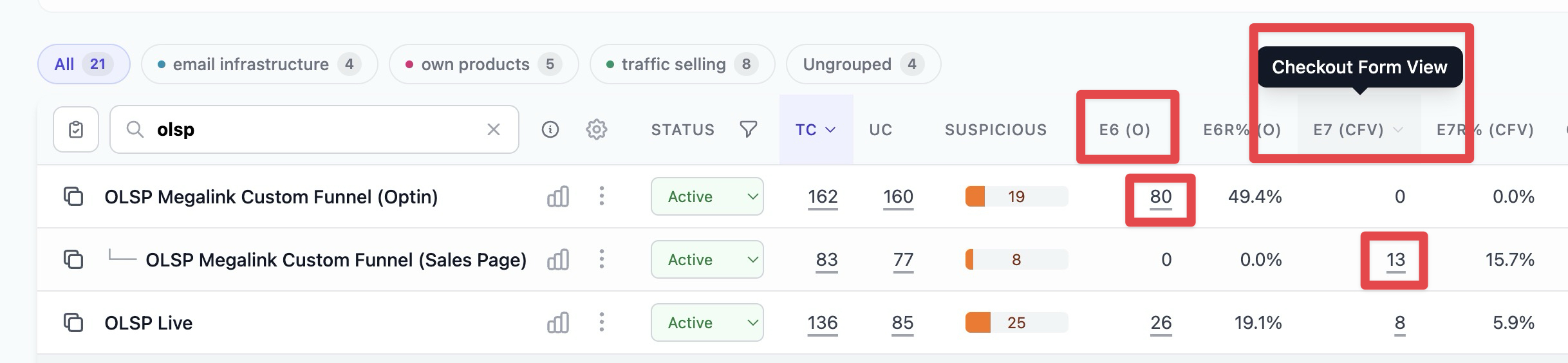
Note: Custom events do not track revenue separately - they only count occurrences. Use the main conversion tracking to track revenue per sale.
Advanced Topics
Event Naming (Optional)
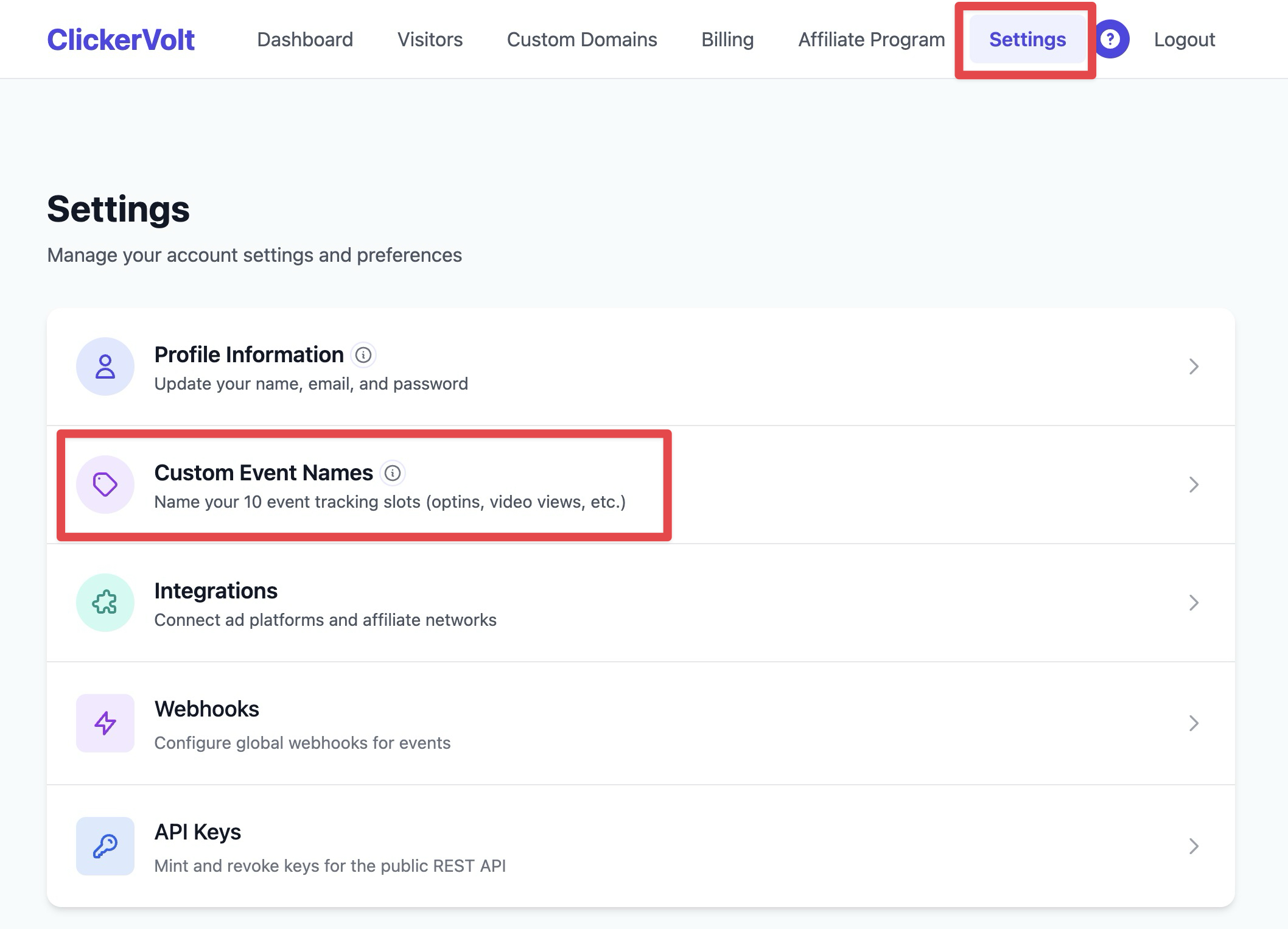
Event names are user-specific and configured in your account settings. For example, you might name "Event 1" as "Free Trial" and "Event 2" as "Paid Upgrade". These custom names will appear throughout your statistics and make reporting easier. If you don''t set custom names, events default to "Event 1", "Event 2", etc.
Events and Rotation Algorithms
Custom events do not trigger target rotation or funnel progression. Only the main conversion affects rotation algorithms like Progressive Exposure. Use main conversions for actions that should advance visitors to the next target.
Event Attribution
Custom events are attributed to the visitor''s most recent click, just like main conversions. If a visitor clicks multiple times, all events are attributed to their latest click. There is no time limit - events can be tracked days or weeks after the original click.
Event Deduplication
A single visitor can trigger multiple different events (Event 1, Event 2, etc.), but triggering the same event multiple times only counts once per visitor. For example, if a visitor calls cvEvent('YOUR_TARGET_ID', 1) three times, only one Event 1 conversion is recorded.
Event Naming Strategy
Event names are account-wide, not link-specific. Choose clear, descriptive names that make sense across all your campaigns. For example, always use Event 1 for "Free Trial" and Event 2 for "Paid Upgrade" across all SaaS campaigns for consistent reporting.
JavaScript vs S2S Postback
Choose JavaScript tracking for browser-side events (clicks, scrolls, video views) where you need real-time tracking in the visitor''s browser. Choose S2S postback for server-side events (subscription renewals, webhook triggers, email opens) where the event occurs on your server or external platform.